 1
11
Confirm who receives it
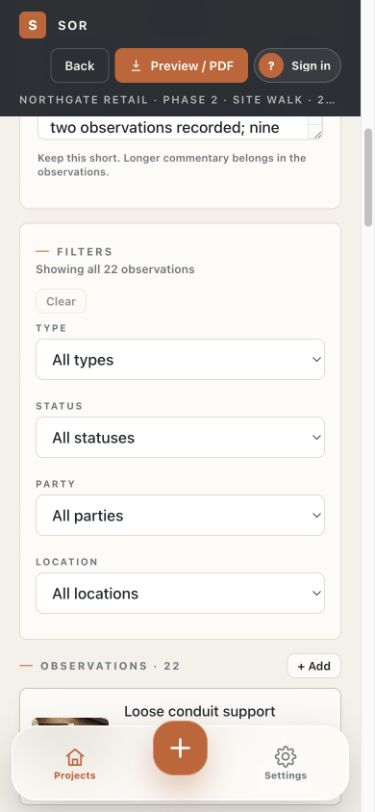
In the report, check “Recipients” and add any missing email address.
The progress card turns ready only when the report has its author, evidence, cover note and recipients.
Finish the report details, inspect the pages and share the PDF through the normal device share screen.
Check the title, date, author, recipients and cover note before you export.
1In the report, check “Recipients” and add any missing email address.
The progress card turns ready only when the report has its author, evidence, cover note and recipients.
 2
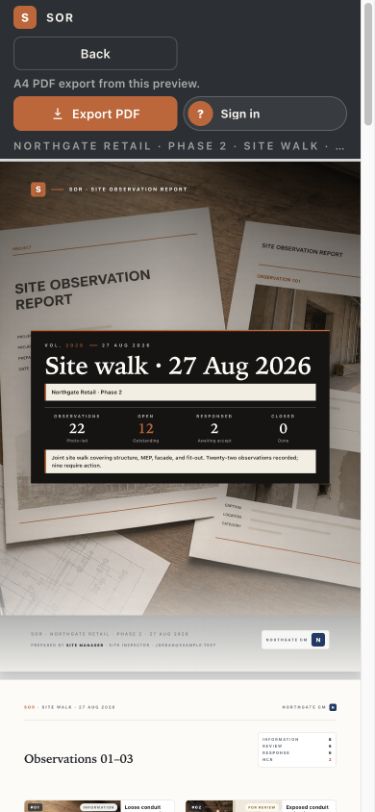
2Press “Preview / PDF”.
The cover, observation order, photos, actions and page count now match the PDF you will issue.
 3
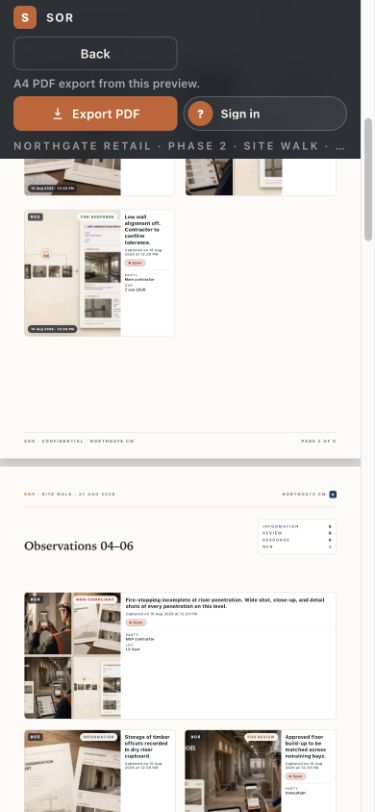
3Scroll through the pages and check the photographs and action details.
Press “Back” if anything needs correcting. Make the change in the report, then preview again.
 4
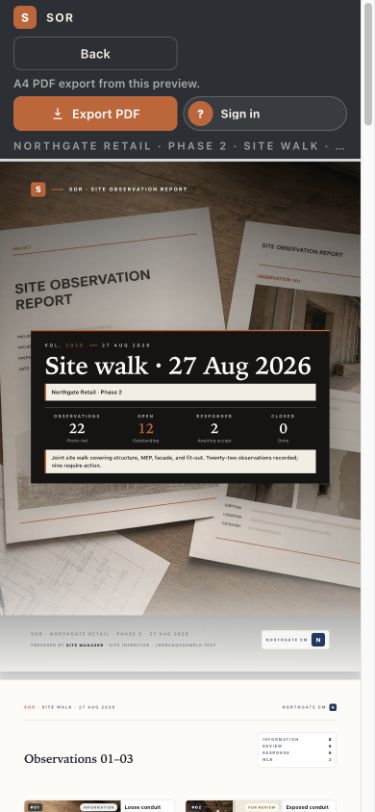
4Press “Export PDF”, then choose Mail, Messages, Files or another share destination.
Use the recipients already listed in the report when you send the issued PDF.